Showing posts with label blog. Show all posts

How to add Related Posts widget in Blogger blogs

Saturday, January 2, 2010

blogger-logo If you are searching for a blog widget which help you display the related post on your post footer then you are on right place. I have found some real cool widgets for Blogger blogs which can be added to blogger blogs with ease. These widgets are of great use as the reader spends more time reading your blog and you get the maximum benefit. They are the best way to make reader explore your blog in easy way.


Some of the best assorted widgets are below, so check them out :


1. Linkwithin Widget :


linkexaple You can go to Linkwithin.com and get this widget by filling up your Email, Web address , your blogging platform and the number of posts you want to show up. No sign-up is required, just fill up the  details and you will see a new page opened with complete instructions on how to install on your blog.


linkwithin

1.1 In the first step click on install widget.


blogger window

1.2 A blogger window will open then click on add widget.


1.3 That’s it now the widget is added on your blog layout .


layone

1.4 Just move it to the post footer and click on save, now the widget should be visible on your post footer.


2. Blogger Widget :


asdf

This widget is from Bloggerplugins.org, it will also display the post the same way Linkwithin widget did. It’s based on displaying the posts accrording to the blogger labels that is the posts related to the same labels are displayed only. This widget is added by editing the html code of your blog. To start applying it open up Edit Html of your blogger blog by signing in to the blogger. Click on the Expand widgets template to open the complete template. Now you have to search for some code and then copy and paste the widget code into the template. You can follow the post here Bloggerplugins.org . Just like the linkwithin widget you can also set the maximum number of post to be displayed by changing the value in this line of code :


var maxresults=5;


So these were the two widgets with thumbnails, there are also other widgets which display only text links to the related posts but I think they do not have much impact on the reader as the ones with thumbnails is more attractive.


If you Love Struck loved  my post, then feel free to subscribe to my feed Click here!

Twitter profile redesigned !

Friday, January 1, 2010

Before ( The Same old boring profile)-> AFTER !! ( Gorgeous looking NEW profile! )

A very happy new year!! , it’s 1st January 2010 and I was trying to design a good looking twitter page for my blog. Here’s what I have got ! but i will try to improve it more and more. I will also tell you how to redesign your Twitter profile in my future post. So stay tuned !.


If you Love Struck loved  my post, then feel free to subscribe to my feed Click here!

How to reduce spam in your Blogger blog comments ?

Wednesday, December 30, 2009

spam I really hate those bullshit comments in which the commenter leaves his URL in the end, like “This is really cool site, plz visit my site again , http://djflewjwgjonl3r3.blogspot.com” and other blah! blah! blah! messages. These all are considered SPAM. So how we can reduce this thing in our blog.


If you are using a blogger blog then here is a simple method to reduce SPAM :


1. Click on Settings

1. Just login to your Blogger Account on blogger.com and click on your blogs Settings.


2. Go to Comments


2. Look for Comments Tab under settings page.


3. Choose these options under this section.

3. Under the Who can Comment Section choose Registered Users ( my recommendation ) or Users with Google Account . This will allow only those persons to comment who have accounts on Google, OpenID, Typepad, Wordpress, AIM and Live Journal. Now those Anonymous and unnamed guys to put those crappy comments. Therefore if a person wants to comment he/she should be a registered user of any  of those platforms.


4. You will also find this section and choose as in the image

4. Now head to the comments moderation section and choose Always Ask option. Now whenever someone comments on a post you will be asked if the comment should be published  or rejected. If non-member of your blog leaves a comment then the update will be sent to your email.


 5. Verify Words to prevent bots5. Verify Words to prevent bots

5. Scroll down and you will find Show word verfication for comments and choose yes.When someone comments a Random image with some words will be shown, if they are typed correctly only then the comment will be sent for moderation or posted.


6. Finally you have configured!!

6. Finally click on save settings and you are done.


You may find similar settings in other blogging platforms like Wordpress, Typepad and others.So from now on only publish the comments you feel are safe.


If you Love Struck loved  my post, then feel free to subscribe to my feed Click here!

How to begin a blog

Tuesday, December 15, 2009

postfirst If you have just got a new blog then a perfect beginning of a blog is very important. The beginning will give the right direction to the future of your blog. If you have got the right beginning then writing further posts on your blogs gets easy as you know what to write about.


Here are some tips to give your blog a successful start:


  • Introduction: In your very first post of your blog, you should first introduce yourself answering the following:

       1. Who you are?

       2. What is your profession?

       3. Where you belong to?

       4. What are your future plans?

       5. What are you going to write about? (explained under)


  • On what you are going to Blog on : The answer to this question will give the foundation to your blog. You have to decide that if you are going to be writing on specific topic or mixed range of topics.


  • Language: Try writing in a casual and simple language as this type of language is more user friendly and help others understand better about your goals.


  • Identity: As in the first post you are going to write about your self, so this page in future will give author the identity, and let the readers understand you better.


  • About Page: This first post will be going to be the About page of your blog. So write it carefully, you can refer other blogs and learn how they have written their about pages. You can check my page also by Clicking Here.


Even though you are not going to get traffic from your first post but a good About Page will speak everything about your blog and will make readers understand your blog more easily.


I hope you now have a better idea on how to get started with your blog.


If you Love Struck loved  my post, then feel free to subscribe to my feed Click here!

Time for New Blog Logo…

Monday, December 14, 2009

I just got bored from my old logo image of my blog and so do my readers(i think so!) as its been more than 1 Year and 8 Months since i put the new logo. So i decided to change it. Here’s my new blog image.


New One:

smbtest


Old One:

my-logo

I think its better than the previous one as it has some more 3D look…What do you say?


If you Love Struck loved  my post, then feel free to subscribe to my posts &

get them sent into your Inbox Click here!

Awesome Blog Listing updated .. 563 blogs ! Add a Blog Now!

Tuesday, November 3, 2009

abl

Hey guys the Awesome Blog Listing has reached to 563 blogs after my recent update. I thank all of you for your contribution.


The Blog listing is not over yet it will run FOREVER. Go and Add your blog now!.. Click Here!


Bob Matharoo


If you Love Struck loved  my post, then feel free to subscribe to my post &

get them sent into your Inbox Click here!

How to blog with Microsoft Office Word 2007

Wednesday, October 21, 2009

Microsoft Office 2007 has very smart feature with which you can publish your documents as blog posts or just use it like windows live writer. All you need is Microsoft office 2007 installed on your system. So lets get started with Blogging in Microsoft Word 2007.


These steps will help you in setting up your blog for use with Microsoft Word 2007.


Lets go:


  • Open up Microsoft Word 2007 on your PC.

Click to Enlarge!


  • Now click on the left cornered button with office logo then many options will open.


Click to Enlarge!

  • Select Publish and then choose Blog under this option.


  • Now a Register a Blog account window will appear.


Click to Enlarge!

  • Click on Register now to set up your blog.


  • Select your Blogging platform like Blogger, Wordpress, etc.


Click to Enlarge!

  • For example I am using Blogger as blogging platform and then click on Next.


  • Enter your Username and Password .


Click to Enlarge!

  • Choose a Server for storing your images. If you have a server then enter the upload URL and  source URL otherwise you will have to choose None-Don’t upload pictures. Sometimes blog service providers automatically host images you upload in the post, so contact your Blog service provider for more information.

Click to Enlarge!


  • Click on OK then Word will ask for your confirmation on sending information.


Click to Enlarge!


  • Now choose your blog and you are ready to blog.


If you Love Struck loved  my post, then feel free to subscribe to my post &

get them sent into your Inbox Click here!

How to protect your Blog Content

Saturday, August 9, 2008

imagesEvery blogger has his or her own writing style which he/she wants never to be copied by others. But many out there exploit other peoples content by simply copying the whole matter from others blogs to theirs. This not only affect the SEO of a blog but also the reputation of blog is affected as the copier write their own name in the end & show them as their very own creation.


Although the problem is not solved completely at present but you can follow these tips & can prevent those suckers! Devil from stealing your content :


Copyscape : Copyscape is a web site where you can get badges for your blog that gives warnings to others & can help prevent copying of your blog. You can also search for copies of your web pages at Copyscape & can sue the copier. Moreover the banners can really help you

Page copy protected against web site content infringement by Copyscape

defend your site a lot & make the people prevent & think before copying material from your blog. Here's how the banner looks after installing on your site....


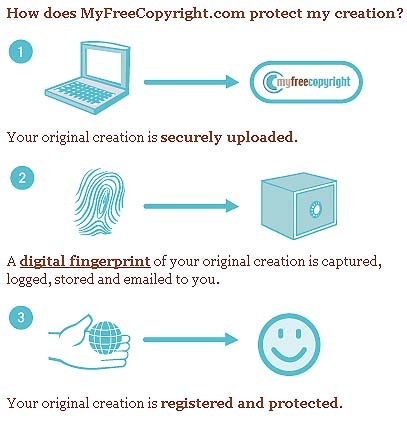
MyFreeCopyright : MyFreeCopyright is very much similar to CopyScape. But I would say that this is more real than the CopyScape as you manually create your account , configure your blog by entering the url & then a badge with unique code is given to you for embedding on your blog. I have one at my blogs footer just like this ; MyFreeCopyright.com Registered & Protected .


Look at the image below which explains the MyFreeCopyright method more clearly :


myfreecopyright


About Page of your Blog can also help you save content of your blog. You can set rights for your blog & can give a do's & dont's list on your Blog.


No Right click Method: This method involves disabling right click on Web Page. All you have to do is add a small code inside body tags of HTML code of your blog. This prevents users from selecting & copying text & images from your Blog. Read More at Hypergurl.com..


Link Back requirement : You can set a simple requirement in about page or at front page of your blog that " users copying anything from this site must give a link back to their site in the end of their copied material " . This line can help you gain popularity & you can get full benefit if someone copies anything from your site.


If you Love Struck loved  my post, then feel free to subscribe to my post &

get them sent into your Inbox Click here!

How to search if your Blog is listed in AWESOME BLOG LISTING !

Thursday, July 24, 2008

abl

AWESOME BLOG LISTING which is taking place on my blog has now more than 500 blogs listed . It has come to my notice that many people are putting their links for listing even if their blogs are already listed.


So finally I have come up with solution which can help you find if your blog is listed in AWESOME BLOG LISTING or not .


Here's how to check it ;


  • Press Ctrl + F ( for Firefox, Opera & IE 6 or above ) .


  • A dialog box appears asking to search for words on the page.


  • Then type in your blog address in 2 different ways to check your blog listing


       1. http://your-address.com

       2. http://www.your-address.com


  • If your blog is listed in the AWESOME BLOG LISTING then you can reciprocate me by placing blog badge on your site.


  • If your site isn't listed then put your blog in Shout Box at AWESOME BLOG LISTING page, your blog will be added & don't forget to reciprocate me by placing new! blog badge on your site..


Here's the New! AWESOME Badge code :


<a href="http://dreadbob.blogspot.com/2007/05/listing-of-awesome-blogs-on-web.html" target="_blank"><img src="http://i169.photobucket.com/albums/u212/Bobmatharoo/awesome-blog-badge.jpg" border="0" alt=" My Blog listed at AWESOME BLOG LISTING "></a>


Preview : My Blog listed at AWESOME BLOG LISTING

This Blog costs only $149,620, Wanna Buy?

Saturday, June 14, 2008


149,620

How much money is your blog worth?


Hi guys I recently checked how much my blog cost at MyBlogValue.com , & it came out to be $149,620 only , So wanna buy it! Devil .


MyBlogValue.com is web site which claculates your Blogs Value based on the 19 questions. Just answer those quesitons & you will know how much your Blog's worth it.So check out how much your Blog costs & sell it if you can!Big Grin

Related Posts with Thumbnails


Copyright © Blog Rescue