Showing posts with label Social Media. Show all posts

Add Twitter Retweet Button to Blogger

Monday, October 5, 2009

Did you know that Twitter can help drive traffic to your Blogspot blog? In today's Blogger tutorial I show you how to add a free Twitter Retweet button to your Blogger posts. Adding a Tweetmeme Twitter Retweet button to Blogger will help promote your blog on Twitter in 2 ways: one by attracting new Twitter followers and two by increasing the direct traffic to your blog from Twitter.

Forget the preamble and take me straight to the instructions to insert the Retweet button into Blogger

What is Twitter and How Does it Work?
Twitter is currently the fastest growing free social networking site. Essentially, Twitter users micro blog about what they are doing or what others are doing by posting tweets of around 140 characters to Twitter. When Twitter members read these tweets and like what they read they can become followers much in the same way that your readers can choose to follow your blog.

Twitter is great news for bloggers because it can be used as a vehicle to promote blogs. Blogger can easily be linked with Twitter services so that every time a post is made to Blogger a short message with a link is posted on Twitter. As every follower is notified that you have tweeted, a blog publisher can gain lots of exposure for their blog with very little effort.

Once you add Tweetmeme retweets to the mix the spread compounds because not only do you have followers hearing about your tweet but the followers of followers. So say one of your followers retweets your post all that person's followers hear about it too and pretty soon a tweet plus your retweets can popularize a post to the point that it spreads so widely that it goes viral.

Advantages of a Twitter Retweet Button
A Tweet/Retweet button looks similar to and behaves like an integrated Digg button but it counts retweets rather than diggs. A Retweet button counts reposts of a tweet so that readers can see at a glance how popular your article is on Twitter. Another benefit of the Retweet button is that it allows your blog readers to retweet your post so that their followers hear about your post too.

How to Add a Twitter Retweet Button to a Blogger Blog (Blogspot Blog)
The following instructions will place a Tweetmeme Retweet button into all of your blog posts.

  1. Login to Blogger if not already logged in

  2. From the Dashboard navigate to Layout > Edit HTML

  3. Check the Expand Widget Templates button

  4. Back up your Blogger template by clicking on Download Full Template as a precaution

  5. Using CTRL + F find the following code:

    <div class='post-header-line-1'/>

  6. Directly after the above line paste the following code depending on which Retweet button and position you prefer:

      Large Retweet Button - Right Aligned
      Retweet Button
      <div style="float:right;padding:4px;">
      <script type="text/javascript">
      tweetmeme_url = '<data:post.url/>';
      tweetmeme_source = 'your_twitter_user_name';
      </script>
      <script type="text/javascript" src="http://tweetmeme.com/i/scripts/button.js">
      </script> </div>


    • Large Retweet Button - Left Aligned
      Retweet Button
      <div style="float:left;padding:4px;">
      <script type="text/javascript">
      tweetmeme_url = '<data:post.url/>';
      tweetmeme_source = 'your_twitter_user_name';
      </script>
      <script type="text/javascript" src="http://tweetmeme.com/i/scripts/button.js">
      </script> </div>


    • Compact Retweet Button - Right Aligned
      Retweet Compact Button - How to add to Blogger
      <div style="float:right;padding:4px;">
      <script type="text/javascript">
      tweetmeme_style = 'compact';
      tweetmeme_url = '<data:post.url/>';
      tweetmeme_source = 'your_twitter_user_name';
      </script>
      <script type="text/javascript" src="http://tweetmeme.com/i/scripts/button.js">
      </script> </div>


    • Compact Retweet Button - Left Aligned
      Retweet Compact Button - How to add to Blogger
      <div style="float:left;padding:4px;">
      <script type="text/javascript">
      tweetmeme_style = 'compact';
      tweetmeme_url = '<data:post.url/>';
      tweetmeme_source = 'your_twitter_user_name';
      </script>
      <script type="text/javascript" src="http://tweetmeme.com/i/scripts/button.js">
      </script> </div>


  7. Change your_twitter_user_name for your actual Twitter username. For instance I would enter BlogWizz

  8. Click on Save Template

  9. Click on View blog to admire your Tweetmeme Retweet button in your Blogger posts

Tips and Troubleshooting
  • To Add Retweet Button Below Blogger Post
    If you want the button to appear at the bottom of Blogger posts instead of just below the post title locate the first instance of the following code and then paste the code for your chosen button immediately after this line: (don't forget to change your Twitter username as in Step 7)

    <data:post.body/>

  • To Have the Retweet Button Appear on Post Pages Only in Blogger
    If you want the button to only appear on the post pages and not the home page you will need to enclose the button code in an if statement. See below for an example of what the full code would look like with this extra code.

    <b:if cond='data:blog.pageType == "item"'>
    </b:if>

    Thus the full code for a right-aligned large Retweet button which only appears on the individual post pages and not the home page would be:

    <b:if cond='data:blog.pageType == "item"'>
    <div style="float:right;padding:4px;">
    <script type="text/javascript">
    tweetmeme_url = '<data:post.url/>';
    tweetmeme_source = 'your_twitter_user_name';
    </script>
    <script type="text/javascript" src="http://tweetmeme.com/i/scripts/button.js">
    </script> </div>
    </b:if>

In this tutorial you have learned how to add a Tweetmeme Retweet Button to your Blogger posts. The Retweet button will encourage your blog readers to retweet your content on Twitter thereby increasing your blog traffic. I have provided the code for both a large and compact button with the option of left or right alignment. The button appears just below the post title and counts the number of retweets of your Blogger post. I have also included details of how to add the Tweetmeme Retweet button to the foot of your Blogger blog and how to add the button to post pages only.


Related Articles
List of Blog Know How Tutorials for Blogger Blogs
Tips to Add a Digg Button to Blogger Blogspot
Add a Twitter Updates Widget to Blogger
Add Twitter Button or Twitter Badge to Blogger
Add Twitter Followers Counter to Blogger
Add a Social Bookmarking Button to Blogger
Add Social Bookmark Buttons to Blogger
Best Free Social Bookmark Icon Sets for Blogger

Free Social Bookmark Buttons for Blogger

Tuesday, August 4, 2009

One way to get your blog to grow is add social bookmarking buttons to your Blogger Blogspot blog. In an earlier article I wrote about the simplest way to place social media on a Blogger blog - that is to add an all-in-one Add This social bookmarking button.

However, as one size doesn't fit all situations there may be lots of times when you would prefer to add individual social bookmark buttons to your Blogger blog. That's why I have put together this list of useful free social bookmarking button sets. All are free to use on a personal blog and most have no restrictions for commercial use either but please do double check the license when you download them if you want to use the buttons commercially.

Best Sources of Social Bookmarking Buttons for Blogger Blogspot

128 Completely Free Icons Set
128 Icons available in 48×48px. Includes Social Media Icons such as: Design Float, Digg, Delicious, Furl, Technorati, Flickr, Stumble Upon, Twitter & more…

Web 2.0 Icons (23 icons)
23 freeware “iPhone-like” icons sized from 512X512 to 16X16 pixels. Includes Blinklist, BlogMarks, Delicious, Digg, FaceBook, Favorite, Feeds, FeedBurner, Flickr, Furl, Google Magnolia, Misterwong, Myspace, Newsvine, Netvibes, Reddit, Simpy, Stumbleupon, Technorati, Twitter, Youtube.

Socialize (12 icons)
12 high quality, free icons in these sizes: 16x16px, 32x32px, 48x48px, 64x64px and 128x128px and 32-bit transparency PNG file format.

Free Social Bookmark Icons for Blogger - Socialize Icon Set

Handycons (12 icons)
Handycons is a free, hand drawn social media icon set containing 12 icons. Package contains icons for del.icio.us, Digg, Mixx, DesignBump, StumbleUpon, Reddit, Developer Zone, DesignFloat, Technorati, Twitter and RSS feed & Email icon, of course. All icons are available in four sizes: 16x16, 24x24, 32x32 and 48x48 pixels.

Free Social Bookmark Icons for Blogger - Handycons


Handycons 2 (20 icons)
20 more hand drawn icons following on from the first Handycons set. Package contains Facebook, Blinklist, Feedburner, Flickr, FriendFeed, Furl, Gmail, Google, Heart icon, Last FM, Linked IN, Magnolia, Newsvine, PayPal, Skype, Sphinn, Twitter, Vimeo, Yahoo and You Tube icons. All icons come in four sizes: 16x16, 32x32, 64x64 and 12x128px.

Free Social Bookmark Icons for Blogger - Handycons2


Social Media Icons (26 icons)
26 clean looking free social media icons available for personal or commercial use.

Aquaticus Social (30 icons)
30 Web 2.0 social media icons in 4 sizes. Free to use on blogs. List includes popular icons like: Blogger, Delicious, Digg, Facebook, flickr, furl, Google, Ma.gnolia, Mixx, MySpace, NetVibes, NewsVine, Reddit, StumbleUpon, Technorati, Twitter, Yahoo!


Aquaticus.Social by ~jwloh on deviantART


Social Me Icons (30 Icons)
30 free iPhone-inspired icons that can be used on blogs and websites without restriction. 4 sizes up to 60x60px, 48x48px, 24x24px, 16x16px. List includes popular icons like: Blogger, Delicious, Digg, Facebook, flickr, furl, Google, Ma.gnolia, Mixx, MySpace, NetVibes, NewsVine, Reddit, StumbleUpon, Technorati, Twitter, Yahoo!


Social.me by ~jwloh on deviantART


Social Bookmark Iconset Pt I
Free Social Bookmark Icons for Blogger - Social Bookmark Iconset

Social Bookmark Iconset Pt II

Free Social Bookmark Icons for Blogger - Social Bookmark Iconset Part II

Ok so that's my current list of some of the best free social bookmark icons available on the net suitable for a Blogger Blogspot blog. This is a pretty extensive list to get you started but I will add more as time goes on and I come across other great sets. If you find what you are looking for here please let me know and if not I would be interested in that too.


Related Articles
List of Blog Know How Tutorials for Blogger Blogs
Add a Social Bookmarking Button to Blogger

Add Twitter Badge Button to Blogger

Wednesday, July 15, 2009

In this tutorial you will learn how to add a Twitter badge aka Twitter button to your Blogger Blogspot blog to link your blog to your Twitter account. By adding a Twitter button you will give your readers the option to follow your blog on Twitter.

Display a Twitter Icon in the Sidebar of Your Blogger Blog
If you look at the top of the right sidebar you will notice that I have placed a Twitter icon with a link to my Twitter profile. Adding the Twitter badge and link is not difficult and requires no change to the template. We will simply be adding a gadget to the sidebar. I have assumed no knowledge of Blogger and widgets so that absolute Blogger beginners can follow this tutorial.


1. Login to Blogger if not already logged in

2. Navigate to Layout > Page Elements

3. Click on Add a Gadget in the sidebar or other location eg the footer if you prefer

4. Select HTML/Javascript from the list of available gadgets

5. Paste the following code into the content box depending on your choice of button:


<a href="http://twitter.com/Your Profile"><img width="133" src="https://blogger.googleusercontent.com/img/b/R29vZ2xl/AVvXsEil8aZuKOlB7bw65QHT7eX5hsEA7-ri_wfJTnijmhfDsf3nZabNOPzSgKLxF4WLEZpgcX4MTX75VxTrUimaQ3yrxnmPaKaedThClxX7gZVmE4FlATTOkRUlrGa2iXN0LpXSf6MzM-NLY-M/s200/twitter-bar.gif" height="34" title="Follow Your Blog Name on Twitter"/></a><br/>


<a href="http://twitter.com/Your Profile"><img width="199" src="https://blogger.googleusercontent.com/img/b/R29vZ2xl/AVvXsEjB2G4r4RdyOGDHzpNMw_KwmLN97NYGPbm2jCiTLC-RbELU1Rz5yvwbzsZn6RXm6xgsPtyZ0VDBM4hxvcHgahqZVYEQhtyIxFSrIA8T8EuReSeIYiszEcUCjvyXuYxX4OFxTKbdxdo6SaA/s200/twitter-35a.png" height="42" title="Follow Your Blog Name on Twitter"/></a><br/>


<a href="http://twitter.com/Your Profile"><img width="191" src="https://blogger.googleusercontent.com/img/b/R29vZ2xl/AVvXsEicMZD1_TXYpXEwjVx6Ut3f-cFn49wXrgjaUSqSw7B7J4V5ZCN6P8Ecs0Q6cU31GHRdqebEwP_j1aGbEX-TlCGrzQtP-xgirw9senlKqfhVVu5m48iZEwaQYmX3qG6I9SpOteWicsdMsnw/s200/twitter-32a.png" height="58" title="Follow Your Blog Name on Twitter"/></a><br/>


6. Change Your Profile to your own Twitter profile. For example:

http://twitter.com/YourProfile

to

http://twitter.com/BlogWizz

7. Substitute your blog name in the title for your own blog name

title="Follow Your Blog Name on Twitter"

to

title="Follow Blog Know How on Twitter"

8. Click on Save.

9. Move your new Twitter widget to the desired location on your sidebar using drap and drop

10. Click on View Blog to admire your new Twitter button


In this tutorial you have learned how to add a Twitter button, badge, icon to your Blogger Blogspot blog so that readers can sign up to follow you on Twitter. I have supplied you with a choice of three different buttons to get you started. For more Twitter buttons try these free Twitter vector icons or these free Twitter graphics or just type Twitter icons into your favorite search engine

Related Articles
List of Blog Know How Tutorials for Blogger Blogs
Add Twitter Followers Counter to Blogger

Add a Twitter Followers Counter to Blogger

Friday, July 3, 2009

In this tutorial you will learn how to place a Twitter Follower Counter on your Blogger Blogspot blog to display the number of followers you have on Twitter. A Twitter count button will encourage readers to follow you on Twitter much in the same way as putting a Feedburner subscriber counter on your blog will encourage new subscribers.

How To Place a Twitter Followers Counter on Blogger

1. Login to Blogger if not already logged in

2. Navigate to Layout > Page Elements

3. Click on the link to Add a Gadget to the sidebar or footer

4. Select HTML/Javascript from the list of gadgets

5. Paste the following script into the widget content box depending on the button your prefer:

Standard Button

<script type="text/javascript" language="javascript" src="http://twittercounter.com/embed/?username=yourTwitterusername"></script>


Black Button
Twitter Followers Counter Black Button
<script type="text/javascript" language="javascript" src="http://twittercounter.com/embed/?username=yourTwitterusername&style=black"></script>


Big Bird Button

<script type="text/javascript" language="javascript" src="http://twittercounter.com/embed/?username=yourTwitterusername&style=bird"></script>


If you would like to view more Twitter Counter badges you will find them at http://twittercounter.com/pages/buttons/

6. Replace the username with your own Twitter username. For example my username is blogwizz so I would enter username=blogwizz. If you are not already a member of Twitter sign up is a breeze

7. Enter a title for the widget if you wish

8. Click Save

9. Move your new widget into position on your sidebar by using Blogger's drag and drop feature

10. Click the View Blog link to admire your new Twitter Followers Counter


In this tutorial you have learned how to put a Twitter Followers Counter on your Blogger Blogspot blog so that you can display an accurate count of your Twitter followers. This will encourage other readers to begin following you on Twitter.


Related Articles
List of Blog Know How Tutorials for Blogger Blogs

Add Email This Post Link to Blogger

Friday, June 26, 2009

In this article you will learn how to place an email this post link or button at the bottom of each post in a Blogger Blogspot blog.

You may have noticed that some blogs give readers the option below their posts to email the article to themselves or a friend via a link or button. This affords readers yet another way to have access to your posts and a link for them to find you if they want to call back.

This email link should not be confused with the subscribe by email link which once a reader is signed up to will give them regular updates of each post you publish. This email link on the other hand only emails the reader the single post they are interested in.

There are several ways to place an email this post link on your Blogger Blogspot blog. Here are three methods known to me.

Add Email This Post to Blogger - Method 1
The easiest method. Adds an email button to the end of each post.

1. Login to Blogger if not already logged in

2. Navigate to Layout > Page Elements

3. Within the template click the Edit link on Blog Posts

Add Email This Post Button to Blogger
4. A pop up menu will open. Under Select Items check the box labelled Show Email Post Links

5. Click Save

6. Click on View Blog and scroll to the end of your post to see the envelope button which has now appeared.


Add Email This Post to Blogger - Method 2
Another method of adding an email this post link to your blog is to add an all-in-one social bookmarking button to your Blogger Blogspot blog. All in one social bookmarking buttons are minimalist and reduce the clutter of having lots of buttons. Read the following article for information about how to add an Add This Social Bookmarking Button to your Blogger blog


Add Email This Post to Blogger - Method 3
By far the most advanced method and requires a change to your Blogger template. Yet another way to add an email this post link to your Blogger blog is to make use of your Feedburner FeedFlare if you have one. For information about getting a Feedburner FeedFlare for a Blogger feed and configuring it please refer to my article Add a Feedburner FeedFlare to a Blogger Feed

Assuming that you already have a burned feed at Feedburner (if not then read my article on how to Burn a Blogger RSS Feed at Feedburner and a FeedFlare set up follow these instructions to add an email this post link.

1. Click the My Account link at the top right corner of the Blogger navbar and then select Feedburner from the list of Google services or sign in to Feedburner directly.

2. Select your blog feed from the My Feeds List on the My Feeds page

3. From the Feedburner dashboard select the Optimize tab.

4. From the left sidebar menu select FeedFlare

5. On the FeedFlare page enable Email This by checking the box under the Site column. (Note the first column is what appears in the feed and the second column is what will appear on your blog). If you don't have your FeedFlare set up yet you can set up the FeedFlare options for both site and feed together at the same time. Follow my article about adding a Feedburner FeedFlare to Blogger for more on this.

Select Email This from the Site Column on Feedburner FeedFlare page
6. Once you have checked the Email This option under Site and added any other options to the FeedFlare in the feed or site that you would like then click on Save. If this is a new FeedFlare then you will click on a button marked Activate instead.


7. After activating or saving you need to get the code to add to Blogger. Do this by clicking on the dropdown menu labelled Get the HTML code to put FeedFlare on your site and selecting Blogger from the list.

8. A pop up window entitled Adding FeedFlare to your Blogger blog will open with instructions on how to make the necessary changes to your blog. These are a bit confusing so I will break them down a bit here. Don't close this window yet as we will return

9. Login into Blogger if not already logged in

10. Navigate to Layout > Edit HTML.

11. Check the Expand Widgets Template

12. As a precaution back up you template

13. Scroll down to the following code or use CTRL + F to bring up the search tool.

<div class='post-footer'>

Note assumes you are using layout in Blogger. If you don't have this code you are likely to be using a custom template and will need to read the advanced instructions. Any problems just ask.

14. Copy the layout code in the Feedburner pop up window and paste it directly below this line <div class='post-footer'>

15. Click Save Template to save changes

16. Click View Blog to see the link in the footer of your blog posts

Add Email This Link using Feedburner FeedFlare in Blogger

In this article I have suggested three different methods to add an Email This Post link to a Blogger Blogspot blog to give readers the option of emailing their favorite articles directly to themselves. If you get stuck or have problems with any of these methods please just ask and I will try to help.


Related Articles
Add Email Subscription Links to Your Blogger Blogspot Blog
Add a Social Bookmarking Button to your Blogger Blog
Add a Feedburner FeedFlare to a Blogger Feed
Burn a Blogger RSS Feed at Feedburner
List of Blog Know How Tutorials for Blogger Blogs

Tips to Add a Digg Button to Blogger Blogspot

Thursday, June 4, 2009

Today's article discusses where to place a digg.com button on your Blogspot Blogger blog and shows you how to add an integrated digg button to your blog. The button allows your blog's visitors to digg posts from your blog and submit those articles to Digg.

What is Digg.com?
Digg is a social content site where readers submit stories, videos and images. Depending on interest and popularity articles are commented on by members. You can encourage your readers to digg your stories by adding a Digg button to your Blogger blog. The button will display a real time count of the number of times your post has been dugg.

Digg Large ButtonWhy Add a Digg Button to My Blogger Blogspot Blog?
Why would I want to add more buttons to my blog you may be wondering. Well there are a number of reasons why getting on board with Digg will be helpful to you in growing your blog.

  • Digg is a ready source of traffic that can drive visitors to your blog and it is too important to overlook. When visitors digg your stories it will encourage new readers to visit your blog.

  • Posts that have been submitted to Digg appear in search engine results so your blog will receive exposure.

  • A digg button will encourage visitors to submit your blog's content including images and video to Digg. This will encourage others to comment and write about your post and possibly link to it.


What to Consider When Choosing to Add Digg to Your Blog
When adding a Digg button to your Blogger Blogspot blog there are some important considerations to think of before you get started. You will need to decide about:

  • Digg Compact ButtonThe look of the button to place on your blog as Digg gives you the option of several sizes to choose from. The look and feel of your blog will dictate what button you decide on.

  • What pages your Digg button will display on. Do you want it on the home page as well as the post pages for instance? I strongly advise that you place any integrated button only on post pages otherwise you will find the loading time of your homepage will be noticeably reduced.

  • What position to place the button in on your blog. Under the post title, beside the first paragraph, below the post are all common locations for a Digg button. Placing a button near the top of your posts can be a good ideas as visitors will see it as the page loads because the button will be above the fold ie the area that visitors see without having to scroll down. If you have a bunch of social media buttons at the bottom of your posts already you might want to include your Digg button in this sequence.


Can I Digg My Own Blog Content?
Yes. You most certainly can digg your own Blogger posts as this will get you a listing in Digg.


How to Add a Digg Button to Blogger Blogspot Blog
I am going to show you how to manually change your Blogger Blogspot template to include your Digg button. While this is not a difficult tweak you will be changing your template. Make sure you take care not to overwrite any code. My suggestion as always is back up first by downloading your template before beginning the addition of this code.

To add a large Digg button to appear next to the first paragraph in your Blogger Blogspot posts:


1. Login to your Blogger blog if not already logged in

2. Navigate to Layout > Edit HTML

3. Back up your template by downloading full template as a precaution

4. Check the Expand Widgets Template box

5. Find this line of code using CTRL + F
<p><data:post.body/></p>

6. Paste the Following code above <p><data:post.body/></p>

<!--Digg.com Button-->
<b:if cond='data:blog.pageType == &quot;item&quot;'>
<div style='float:right; margin-left:10px;'>
<script type='text/javascript'>
digg_url=&quot;<data:post.url/>&quot;;
</script>
<script src='http://digg.com/tools/diggthis.js' type='text/javascript'/>
</div></b:if>
<!--end Digg.com Button-->


7. Click on the Save Template button

8. Click on View Blog link and navigate to an individual post page. You will see your new digg button is only visible on the post page.


Customizing Your Digg Button Tips and Troubleshooting
  • To have the Digg button display on all pages not just the individual post pages remove this line:

    <b:if cond='data:blog.pageType == &quot;item&quot;'>

  • To have the Digg button aligned to the left instead of the right change this line from:
    <div style='float:right; margin-left:10px;'>

    to:
    <div style='float:left; margin-left:10px;'>

  • To replace the large button with the compact button replace the code in Step 6 with:
    <!--Digg.com Button-->
    <b:if cond='data:blog.pageType == &quot;item&quot;'>
    <div style='float:right; margin-left:10px;'>
    <script type='text/javascript'>
    digg_url=&quot;<data:post.url/>&quot;;
    digg_skin=&quot;compact&quot;;
    </script>
    <script src='http://digg.com/tools/diggthis.js' type='text/javascript'/>
    </div></b:if>
    <!--end Digg.com Button-->

  • To change the background color of the button from white to your own desired color add this line:
    digg_bgcolor=&quot;#ff9900amp;quot;;

    below this line:
    digg_url=&quot;<data:post.url/>&quot;;

    Note: Change the value #ff9900 to whatever hex color you would like.

  • To move the Digg button to below the post content instead of at the top paste the following code:
    <!--Digg.com Button-->
    <b:if cond='data:blog.pageType == &quot;item&quot;'>
    <div style='float:right; margin-left:10px;'>
    <script type='text/javascript'>
    digg_url=&quot;<data:post.url/>&quot;;
    digg_skin=&quot;compact&quot;;
    </script>
    <script src='http://digg.com/tools/diggthis.js' type='text/javascript'/>
    </div></b:if>
    <!--end Digg.com Button-->

    to the end of the section of code beginning with this line
    <div class='post-footer-line post-footer-line-2'>
    If you have a third post footer line then place this code after that block of code.

    Add Digg button after labels in post footer

    Add Digg Button to Below Blogger Blogspot Post Content


    In this tutorial you have learned about what Digg is and the benefits of adding an integrated Digg button to your Blogger Blogspot Blog. You have also learned about different placement options for your Digg button and been given step by step instructions on how to customize the Digg button to suit the needs of your blog.


    Related Articles
    List of Blog Know How Tutorials for Blogger Blogs
    Add a Social Bookmarking Button to Blogger

  • Guide to Blogger Blogspot FAQs

    Saturday, May 16, 2009

    Guide to Blogger Blogspot FAQs. When you are looking for help with Blogger Blogspot you want to get that help as fast as possible that's why I have created a list of the most commonly asked questions by visitors to my blog. Use this post as a ready resource for all your frequently asked questions about blogging using the Blogger Blogspot blogging platform.

    Banners and Advertising
    Building Site Traffic
    Common Blogger Problems Fixes
    Customize Blogger
    Gadgetize Blogger
    Google Adsense
    Monetize Blogger
    Posting and Commenting
    Publicize Blogger
    Search Engine Optimisation
    Social Media
    Tracking Site Visitors


    Banners and Advertising FAQ
    Where can I post a banner on Blogger Blogspot?
    It is possible to add an affiliate banner to Blogger in a number of places. You can add a banner to the Blogger, above the header, above the first post, within a post, below a post, in a sidebar, and in a footer.

    How do I place an advertising banner in a Blogger header?
    Add an Affiliate Banner to the Blogger Header

    How do I place an advertising banner in a Blogger sidebar?
    Add an Affiliate Banner to Blogger Sidebar

    How do I place an advertising banner above the Blogger header?
    Add Google Adsense or banner above the Blogger header


    Build Site Traffic
    How do I encourage more visitors to my blog?
    Find 10 hot tips to help you get visitors to your Blogger Blogspot blog
    10 Tips to Build Traffic to a Blogspot Blog

    Why do I need to add my blog to blog directories?
    It is not essential to add your Blogger blog to blog direcories but it is a good idea since they are a valuable link and a ready source of traffic for your blog and Submit a Blogger Blog to Blog Directories

    What blog directories should I add my blog to?
    There are many blog directories on the net and more springing up all the time. For some recommended blog directories check out this article:
    Submit a Blogger Blog to Blog Directories


    Common Blogger Problem Fixes
    How do I remove the navbar from Blogger?
    You can't actually remove the Blogger navbar but there is a trick to hide it.
    Hide Remove Blogger Navbar

    How do I reinstate a deleted Blogger navbar?
    I am often asked how to fix a deleted Blogger navbar. Find the solution in:
    Hide Remove Blogger Navbar

    How do I fix the missing comments form below posts?
    Many custom templates were created prior to Blogger embedding the comments form below posts. For details on how to upgrade your Blogger template to include an embedded comments form below posts on the single post page please refer to:
    Add Missing Embedded Comments Form to Blogger

    How do I fix the missing add a gadget in the layout screen?
    If you can no longer see Add a Gadget in Layout > Page Elements then there is very likely a problem with your browser cache. Check out:
    Missing Add a Gadget Solution in Blogger


    Customize Blogger
    How do I add categories to Blogger?
    Blogger doesn't have categories only labels. If you want to add a categories section you can using a linked list but you will need to update it manually.
    Add a Categories Section to Blogger

    How do I add a list of recent posts to Blogger?
    By making use of your blog's feed you can display the 5 most recent posts on your blog.
    Add a Recent Posts Feed to Blogger

    How do I display a list of recent comments on Blogger?
    By making use of your blog's feed you can display the 5 most recent comments on your blog.
    Add a Recent Comments Feed to Blogger


    Gadgetize Blogger
    How do I add a Live Traffic feed to my blogger Blogspot blog?
    If you insert a free live traffic feed like Feedjit on your blog you will be able to watch visitors arrive at your blog in real time and gather information about where they came from, where they exited to, eearch engine keywords and keyword phrases used to access your blog.
    Add Feedjit Live Traffic Feed to Blogger

    How do I add a ratings widget to Blogger?
    If you've seen star ratings on blogs you've visited lately and you would like to add one to your blog check out my article on the Outbrain ratings widget:
    Add Outbrain Ratings Widget to Blogger

    How do I add a bookmarking button to my blog?
    Your visitors can share your posts with friends and add an online bookmark with an Add This Social Bookmarking button
    Add a Social Bookmarking Button to Blogger

    How can visitors subscribe to my blog?
    You can encourage readers to sign up to regular updates of your blog by adding a subscribe button or link to your blog.
    Add an Email Subscription Form and Links to Blogger Blogspot Blog


    Google Adsense FAQ
    Can I put Google Adsense on my Blogger Blogspot blog?
    Yes you most certainly can. Unlike other online blogging platforms like Wordpress Blogger permits Blogger publishers to add Google Adsense to any Blogger blog. However be aware that spam blogs - that is blogs specifically set up to make money from Google Adsense are prohibited by Blogger.

    How much money can I make from Google Adsense?
    If your blog receives enough traffic (75+ visitors per day) you will be well placed to earn revenue from your Blogger Blogspot blog. Want to know more refer to:
    Google Adsense Myths for Blogger Blogs

    How Many Google Adsense Ad Units Can I Place on a Blogger Blog?
    Google allows 3 content ads, 3 link ads and 2 search boxes on any given page. These rules are subject to change so if in doubt check Google Adsense FAQ.

    How do I add Google Adsense to Blogger?
    You will find many tips on the basics of adding Google Adsense to Blogger in this article:
    Google Adsense Tips for Blogger

    Where should I place Google Adsense on Blogger?
    Better Placement of Google Adsense on Blogger
    Blogger Guide to Google Adsense Placement


    Monetize Blogger
    How do I add a donate button?
    Adding a Paypal donate button to a Blogger Blogspot blog will encourage satisfied visitors to say thanks.
    Add a Paypal Donate Button to Blogger

    How do I make money from my Blogger blog?
    5 Easy Ways to Make Money from a Blogger blog


    Posting and Commenting in Blogger
    Why do the links to my post titles get shortened?
    When you publish an article in Blogger a permalink gets created. If the title of your post is longer than about 35-40 characters Blogger shortens it. Check out this article for ideas on how to work around this issue
    How to Create Search Engine Friendly Permalinks

    How do I post date my posts?
    Blogger allows publishers to post date their posts. Read the following article to find out more about how to set a future publishing date for a post
    Choose Your Own Blogger Post Date

    How do I date my posts with a date that has already passed?
    Blogger will let you set a date for a post in the past, present or future. Find out more by reading the following article:
    Choose Your Own Blogger Post Date


    Publicize Blogger
    Why is it important to burn my Blogger feed?
    there are quite a few reasons reasons why it is a good idea to burn your Blogger Blogspot feed at Feedburner check out this article to find out more:
    Blogger RSS Feeds and Feedburner

    How do I burn my Blogger feed at Feedburner?
    If you would like to burn your Blogger feed at Feedburner to build readership of your blog then this indepth article will show you how:
    Burn Blogger RSS Feeds at Feedburner

    How do I add a FeedFlare to a Blogger feed?
    Not only will a Feedburner FeedFlare encourage your visitors to share your posts on various social media sites it will also copyright your material if you add this notice to the bottom of your posts. Learn more about Feedburner FeedFlares:
    Add a Feedburner FeedFlare to a Blogger Feed


    Search Engine Optimization
    How do I get my Blogger Blogspot blog listed by major search engines?
    If you wait for search engines to crawl your blog it may take a long time to appear in search engine results. You can speed up this process by submitting your blog and a sitemap to major search engines. Find out more:
    Add Your Blog to Major Search Engines

    How do I get listed by Yahoo?
    For instructions on how to let Yahoo know about your blog and add a Blogger sitemap to Yahoo follow this guide:
    Submit Your Blogspot Blog to Yahoo


    Social Media
    How do I add bookmarking button to my blog?
    There are a number of ways to add social media to your blog. One easy way is add an all in one social bookmarking button by Add This.
    Add a Social Bookmarking Button to Blogger

    How do I add Twitter Links to Blogger?
    How to Add a Twitter badge to Blogger
    How to Add a Twitter Followers Counter to Blogger


    Tracking Site Visitors
    How do I know who is viewing my Blogger Blogspot blog?
    There are a number of programs that can help you track visitors to your blog. One of the best, Google Analytics is provided free by Google. For more about Adding Google Analytics to a Blogger Blog

    What gadget lets me watch visitors as they arrive?
    If you want to see visitors arrive at your Blogger Blogspot blog you can put a free Feedjit live traffic feed widget on your Blogger sidebar.
    Add Feedjit Live Traffic Feed to Blogger


    Related Articles
    List of Blog Know How Tutorials for Blogger Blogs

    Add a Feedburner FeedFlare to Blogger Feed

    Monday, April 20, 2009

    If you have burned your Blogger Blogspot blog feed at Feedburner you can easily add a FeedFlare to the footer of the feed. FeedFlare helps you to distribute, inform and create a community around your content. Adding a FeedFlare to the feed of your blog allows readers to select from a range of social bookmarking links which appear at the end of each post. FeedFlare offers subscribers some easy ways to email, tag, share, and bookmark your blog content by linking them with a range of services such as Stumble Upon, Digg This, Facebook, Technorati, del.icio.us and Mixx.

    It is not difficult to add a FeedFlare to your Blogger feed but it does require you to add a snippet of code to the template of your blog. Don't be put off as I will guide you through this process by providing a step by step walkthrough. This tutorial caters for all levels of technical knowledge from the newbie Blogger to the experienced Blogger.

    To see a FeedFlare in action right now check out the end of each post in the Blog Know How feed


    How to Add a Feed Flare to Your Blogger Feed
    If you have yet to burn your Blogger feed at Feedburner please refer to my articles Blogger RSS Feeds and Feedburner and Burn Blogger RSS Feeds at Feedburner for instructions on how to burn your feed and benefits of burning your blog's feed at Feedburner.

    1. Login to Feedburner with your Google Account. From the My Feeds page click on the link to your blog

    2. By default you will be taken to the Analyze page so you need to select the Optimize tab from the menu

    3. Select FeedFlare from the Side Menu

    4. To create a simple FeedFlare check the boxes of the options you would like. At a mininum I suggest you select email and comments count (for blogger) in addition to Stumble Upon, Digg This, del.icio.us and Facebook.

    5. Once you have selected the desired options you can reorder them in the Preview/Reordering box below using drag and drop to shuffle the links around. I think it is a good idea to have comments either at the beginning or the end of the list as readers are more likely to notice it in this position

    6. Click on Activate. Do not close this window as we will be returning here.

    7. In a new window login to Blogger if you are not already logged in and navigate to Layout > Edit HTML

    8. I strongly suggest you back up your template as a precaution by downloading it to your computer

    9. Use CTRL + F to bring up the toolbar and enter the following code into the search box

    <div id='post-footer'>
    Find Post Footer Code
    10. Return to the FeedFlare page at Feedburner and select Blogger from the drop down menu at the bottom of the page to get the HTML Feedburner code. A dialog box will appear with some instructions. Copy the code found in item #1. Editing Blogger Layouts. To copy right click your mouse and choose select all to highlight the code and then right click again and choose copy

    11. Paste the Feedburner code into your template directly below the line of code in your template you just located <div id='post-footer'>
    Add Feedburner FeedFlare Code into Your Blogger Template
    12. Click on the Save Button

    13. Return to Feedburner. Immediately below your blog's title and just above the Analyze tab you will see two icons. Click on the RSS icon (left button) which will bring up your blog feed.

    Feedburner feed icon
    14. Scroll to the bottom of the first post and you will see your new FeedFlare in action.

    FeedFlare in Blogger Feed Redirected by Feedburner

    Other FeedFlare Options
    For smarter looking links you may choose to customize the FeedFlare's appearance by tweaking the CSS.

    To prevent stealing of your original content otherwise known as blog scraping or splogging you can add personal FeedFlares such as a permalink to a copyright notice and a permalink to you the author of the blog.


    In this tutorial you have learned how to create a FeedFlare at Feedburner which appears at the bottom of each post in your Blogger blog's feed. By adding the FeedFlare to the footer of your Blogger blog you help build an online community around your content by offering your readers some choices about how they share, link to and act on the information contained in your blog

    Related Articles
    Blogger RSS Feeds and Feedburner
    Burn Blogger RSS Feed at Feedburner

    Avoid 6 Common Blogger Mistakes

    Friday, April 3, 2009

    If you want your Blogger blog to sizzle and really take off there are some pretty important blogging pitfalls that you need to avoid. In today's article I will be talking about 6 of the most common mistakes new bloggers make on their Blogger Blogspot blog and how to avoid them.

    1. Avoid Poor Content
    I can't emphasize enough that the standard of your content will make or break your blog. Poor content = few return visitors. Good content on the other hand will attract visitors and keep them coming back to check out what's new.

    Successful bloggers write clearly, know their subject and develop their own unique voice. A conversational style is often recommended but I suggest just write naturally and that naturalness will shine through.

    Post quality well researched content that is interesting and topical. To do this you need to know your audience. Who are your readers? Do you know? If you don't know your target audience it will be hard to put yourself in their shoes which is exactly what you need to be able to do when you sit down to write a post. Ask yourself what are my readers looking for that would make them visit my site and read my post. Are they looking to be entertained, informed or a bit of both? Sign up for visitor tracking such as Google Analytics if you aren't already so you can get an idea of your visitor base. For help with implementing Google Analytics please read my post on adding Google Analytics to your Blogger blog.

    2. Avoid Hopeless Headlines
    I've seen some pretty hopeless headlines that don't give me enough of a clue about what a post is about to entice me into reading the article. If you want to attract readers to your site you need to grab them. That means putting some thought into crafting headlines that have punch. Remember your headline needs to reel your visitors in so make sure it is well thought out and punchy. Your headlines have to stand out to be noticed as so many people read headlines in RSS feeds.

    Another important consideration when deciding on a headline is SEO. Consider what your readers might search under to find your post. "Blogging pitfalls" and "common blogging mistakes" are more likely keyword search phrases than "bad blogging practices." So knowing your keywords will help you craft headlines that are keyword rich.

    3. Avoid Posting Too Infrequently
    Once a visitor has found your site you want them to keep coming back. One way to ensure repeat traffic is to post frquently. Many new bloggers start a blog but find it hard to maintain a posting routine that is frequent enough to retain traffic.

    Just the other day I had someone comment that one of the reasons why they liked my blog was the frequency at which I post. I try to post a new article every second or third day if possible. I usually am working on lots of other articles in the background so that I might have two nearly finished and half a dozen or so at various stages of completion. Using this system I have some flexibility and a cushion if anything comes up to interrupt my posting schedule.

    Whatever you do don't make the mistake of posting just for the sake of posting otherwise your readers will see through this and you will lose readership.

    4. Lack of Overall Focus - Trying to Paint the Whole Wall
    So many new bloggers start their site without a clear focus. What kind of focus you may ask? Well making money is not enough of a focus. I am talking about identifying your niche and sticking to it. If you try and paint the whole wall your visitors will be confused about what your blog is about and you will very likely lose traffic rather than gain it.

    Having a focus is important. On Blog Know How for instance, I concentrate on helping webmasters of Blogger blogs get the most out of their blog. I particularly aim my site at the new blogger and provide detailed step by step walkthroughs with them in mind. At the same time, however, I cater for all Blogger webmasters who access my blog. What I don't do though is go outside the theme of Blogger by writing about blogging in general. Instead I write articles that may be general in nature but are tailored to Blogger webmasters.

    Yes I could get more traffic perhaps if I widened the scope of my articles to include Wordpress or blogging in general put what would then make my blog stand out from a whole heap of other blogs giving advice on blogging? Having a niche earns me traffic that is focused. Site visitors come with the goal of becoming more informed about using Blogger. If they go away having learnt more than when they arrived my site will have done its job and I may have just found myself a repeat visitor.

    5. Avoid Too Much Advertising on Your Blog
    New blogs need to build traffic and too much advertising can be a big deterrent in
    achieving this goal. When your site is very new it doesn't pay to have too much advertising at all. Err on the side of less advertising rather than more. Bear in mind of course that Rome wasn't built in a day and your site won't be either. Have faith that your traffic will build and you can gradually introduce more advertising like Google Adsense as visitor numbers increase.

    6. Avoid Too Many Social Bookmarking Buttons
    Too many social bookmarking buttons can clutter up your blog and slow it down. Many people still don't know too much about social bookmarking so avoid the temptation to overuse these icons. Rather than use a whole bunch of popular icons like Digg and Technorati which can lead to a cluttered look and feel I use a single consolidated button like Add This. Share This is another popular button for sharing your posts.

    To install a social bookmarking button on your Blogger blog follow the step by step instructions contained in my article on Add This

    This article has discussed 6 common mistakes new bloggers make when developing a new Blogger Blogspot blog and given suggestions on how to avoid them.as visitor numbers increase.

    10 Tips to Build Blogger Blogspot Site Traffic

    Friday, March 13, 2009

    This article discusses 10 easy ways Blogger (Blogspot) Bloggers can build site traffic and in many cases improve SEO - search engine optimization. By implementing these steps you will improve the likelihood of your site ranking more highly in search engine results of major search engine players Google, Yahoo and MSN and as a result increase the number of visitors accessing your site.

    10 Easy SEO Tips for Blogspot Bloggers to Improve Search Engine Rankings

    1. Make Your Title Tags Search Engine Friendly
    One of the most important tweaks necessary for Blogspot Blogs is the adjustment of the title tags of your website because Blogger.com by default has not optimized these for search engines. To prove this point navigate to an individual post on your blog and you will see that the blogname appears first in the title bar at the top of your browser followed by the post name. As search engines place greater value on the first words of an entry this puts your site at a disadvantage in search engine results. Fortunately it is easy to reverse the blog name and the post name with a simple tweak. For instructions on how to change the order of these title tags please refer to my article entitled Adjust Blogger Title Tags to Improve SEO

    Reversed order of Blogname and Post Name Improves Search Engine Results

    2. Create Search Engine Friendly Permalinks
    Blogger automatically generates a permalink based on the title of your post each time you make a post. For this reason it is important to craft your title carefully. Permalinks are sometimes less than ideal especially if you have a long title. Take for example the following permalink for one of my posts:

    http://blogknowhow.blogspot.com/2009/02/improved-permalinks-for-blogger-posts.html

    You will see that it is search engine friendly in that in contains 2 keywords blogger and permalinks. However you may be surprised to know that How to Create Search Engine Friendly Permalinks for Blogger Posts is actually the title of this post not Improved Permalinks for Blogger Posts. I have initially used a title that is keyword rich and then after publishing gone back and entered a more descriptive title. No matter how many times I change the title the original permalink remains. If I had entered the second title straight away I may have ended up with the following permalink:

    http://blogknowhow.blogspot.com/2009/02/how-to-create-search-engine-friendly.html


    Not very pretty is it? And as you can see the whole point of the post is lost.

    For more information on crafting permalinks please refer to my article How to Create Search Engine Friendly Permalinks for Blogger Posts


    3. Add a Social Networking Button to Your Blog
    By adding a Social Bookmarking button to your website you will enable visitors to your blog to create links to popular social bookmarking sites such as Google, Technorati, Facebook, MySpace, Digg, Stumble Upon, Reddit, Delicious, Furl, Yahoo etc. This means that visitors to your site will be able share these links with others thereby helping you attract more traffic to your site and encourage return visits.

    Another benefit of a social bookmarking button is that you will be able to identify visitor trends and social bookmarking behaviour on your site. For more information on how to add a free Add This Social Bookmarking button to your Blogger blog please refer to my article Add a Social Bookmarking Button to Your Blog.

    Add a Free Add This Social Bookmarking Button to Your Blogspot Blog

    4. Submit a Sitemap of Your Blog to Popular Search Engines
    If attracting traffic to your site is important to you then it is imperative that you ensure that your Blogger (Blogspot) blog is properly indexed by popular search engines such as Google, Yahoo and MSN. One way to expedite this is to submit a sitemap to each of three major search engines. Please refer to my tutorials on website submission, authenticating your site and adding your site feed to Yahoo Site Explorer, Google Webmaster Tools and MSN Tools.

    Google - Submit Your Blogspot Blog Sitemap to Google

    Yahoo - Submit Your Blogspot Blog to Yahoo

    MSN - Submit Blogger Sitemap to MSN Live Search

    Also take a look at my tutorial on submitting your blog to major search engines

    5. Build Quality Links
    If you want to rank highly in Google and other search engines then you need to generate quality in-bound links. That doesn't mean exchanging links with everything and everyone as I see some new webmasters do. A few quality links from authoritative sites will boost your page rankings quickly and are far superior to a bunch of links from low ranking sites.

    There are several good ways to generate links to your blog. One easy way is to to submit your site to blog directories. For more information on recommended blog directories please see my article Submit Your Blogger Blog to Blog Directories. Another way to cultivate in-bound links is to submit your best articles to article directories. A third possibility is to actively participate in forums and on other related blogs where commenting affords you the option of adding a link to your site.

    I would recommend linking to DMOZ (Open Directory Project). Care needs to be taken to submit your site to the correct subject area. Becoming listed can take awhile so patience is needed.


    6. Write Quality Content and Post Frequently
    If you have read any articles on the subject of Blogging and SEO you will no doubt have observed writers emphasising the importance of quality content. I can't stress enough how much return visits depend on providing inducements to visitors to come back. If your site content is well written and informative half the battle is won. Make sure you post frequently so that visitors can see the value of subscribing in a reader. Take some care with the presentation of your content and images as this will present a professional image. Avoid common pitfalls like bad grammar and spelling mistakes which stand out like a sore toe and detract from a visitor's overall positive experience of your site.

    One leading professional blogger Yaro Starak recommends the use of pillar articles. These are articles that don't change over time and continue to attract visitors. The best pillar articles explain some concept, provide definitions, give advice or present some argument. Your site needs to have at least 5 pillar articles and more if you can manage it. Pillar articles need to be more than 500 words long, crafted to generate interest and provide a welcome resource to your visitors.

    7. Ensure Your Content is Keyword Rich
    Apart from the quality of your content there is the question of keyword density. The more keyword rich your posts are the greater the likelihood they will appear higher in search engine results. This means it is worth the effort of crafting your content in such a way that you make use of important keywords and keyword phrases frequently used. Don't go overboard however as Google is smart enough to recognise if your pages are littered with keywords and nothing much else. A useful free SEO tool to help you optimise your site using keywords and labels is Google Adwords. Another good tool to help you quickly craft keyword rich material is Live Keyword Analysis which assesses the keyword density of keywords and keyword phrases of any post you paste into the analysis box.

    When writing posts make sure your opening sentence describes what the article is about and contains your keywords and keyword phrases. It is important that your first sentence is keyword rich as search engines like Google give more emphasis to content at the beginning of the post. Also it is worth including a short ending statement about the content of the post as there is some evidence that Google also places value on the content at the end of the post.

    8. Manage Your Feeds Carefully
    Feeds help your visitors find your site so they need to be managed carefully in order to make the most of them. Your site feeds are an important way to create backlinks too. Backlinks from authoritative sites are highly valuable and can boost your page ranking. For information about showing backlinks please refer to the Blogger Help Article About Backlinks

    Ensure you have your RSS feed icons clearly visible for visitors to see. The most superior positioning of the feed icons on your site is in the header. Watch out for coming tutorials on how to improve positioning of RSS feed links.

    You can redirect your feed to a feedburning service like Feedburner and then add a chicklet to your site (orange RSS feed button) so that the feed is instantly available on click. Please refer to my tutorials about Blogger feeds:Burn a Blogger RSS Feed at Feedburner and Blogger RSS Feeds and Feedburner. To add a FeedFlare to your burned feed check out my tutorial.

    If you haven't burnt your feed you can try adding a Subscription Links widget to a sidebar too to encourage visitors to subscribe to your site in popular on-line readers such as Google Reader. You will find the Subscription Links widget available under the list of gadgets.

    Blogger Subscription Links Widget installed on Blog Know How
    Display your most recent posts by configuring a feed widget. Under Layout > Page Elements add a feed gadget to a sidebar. Enter the URL of the default feed of your site which will be:

    http://yoursitename.blogspot.com/feeds/posts/default

    Enter Recent Posts in the title and then Save. For more information about adding a posts feed widget to a sidebar please refer to my article Add a Recent Posts Feed to a Blogger Blog

    You can do the same for comments if you wish to have a list of recent comments displayed in your sidebar. In this case you would enter:

    http://yoursitename.blogspot.com/feeds/comments/default


    For more in depth coverage about adding a comments feed to your sidebar please see my article Add a Recent Comments Feed to a Blogger Sidebar

    Ensure you set up your site feeds to show the full text. To check this navigate to Settings > Site Feeds and select yes from the dropdown box for all three feeds.

    Consider having a feed specifically for a popular label if it contains 20 or more posts.


    9. Optimize Your Use of Images
    Chances are you don't give a thought to images when you insert them into your posts but images can be optimized by careful use of filenames and the alt attribute. When naming images avoid long names. Instead give your images distinctive filenames rather than something generic like 00045.jpg which has no meaning.

    The alt attribute allows you to specify what text is displayed when a visitor's mouse hovers over an image. The alt attribute also gets displayed if the image is not available for some reason. By optimizing your alt attributes you are increasing the likelihood of your images appearing in Google Image Searches.

    Optimizing your alt attributes is easy. Every time you insert an image into a post look for the alt attribute which will be empty by default

    style="DISPLAY: block; MARGIN: 0px auto 10px; WIDTH: 320px; CURSOR: hand; HEIGHT: 122px; TEXT-ALIGN: center" alt="" src="http://3.bp.blogspot.com/abcdeefgBxA/4560/sidebar-add-this-bookmark-button.JPG" border="0" />

    Fill in the alt attribute with a useful description of your image

    style="DISPLAY: block; MARGIN: 0px auto 10px; WIDTH: 320px; CURSOR: hand; HEIGHT: 122px; TEXT-ALIGN: center" alt="Blog Know How Sidebar Showing Add This Bookmark Button" src="http://3.bp.blogspot.com/abcdeefgBxA/4560/sidebar-add-this-bookmark-button.JPG" border="0" />

    Depending on the subject of your site you can gain a lot of traffic from the images you post on your site. The more unique the content of your site the greater the likelihood that your traffic will stem from images. Without going overboard ensure you have a good mix of images to support your articles.


    10. Take Advantage of Web Analytics Services
    Having implemented some strategies to improve crawling and indexing of your site by search engine giants Google, Yahoo and MSN chances are you will want to see how these changes have impacted on the traffic reaching your site. Web Analytics programs are a valuable tool for gaining insight into visitor behaviour and trends. The kind of information that a program like Google Analytics will provide is:
    how users reach and behave on your site

    the most popular content on your site

    the impact of optimizations you make to your site (e.g. by how much did changing the order of title tags improve traffic from search engines?)
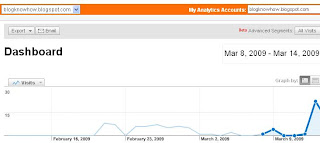

    To integrate Google Analytics into your Blogger (Blogspot) blog please refer to my articles Track Visitors to Your Blogger Blog and Add Google Analytics to Blogger Blog

    This article has discussed 10 easy ways to build site traffic and improve SEO for Blogger (Blogspot) Bloggers by addressing the following areas: feeds, images, social bookmarking, title tags, permalinks, content, analytics, submitting your blog to search engines.

    Related Articles
    Blogger Guide to Google Adsense Placement
    Avoid 6 Common Blogger Mistakes
    Add Meta Tags to Blogger for Better SEO
    List of Blog Know How Tutorials for Blogger Blogs

    Related Posts with Thumbnails


    Copyright © Blog Rescue